
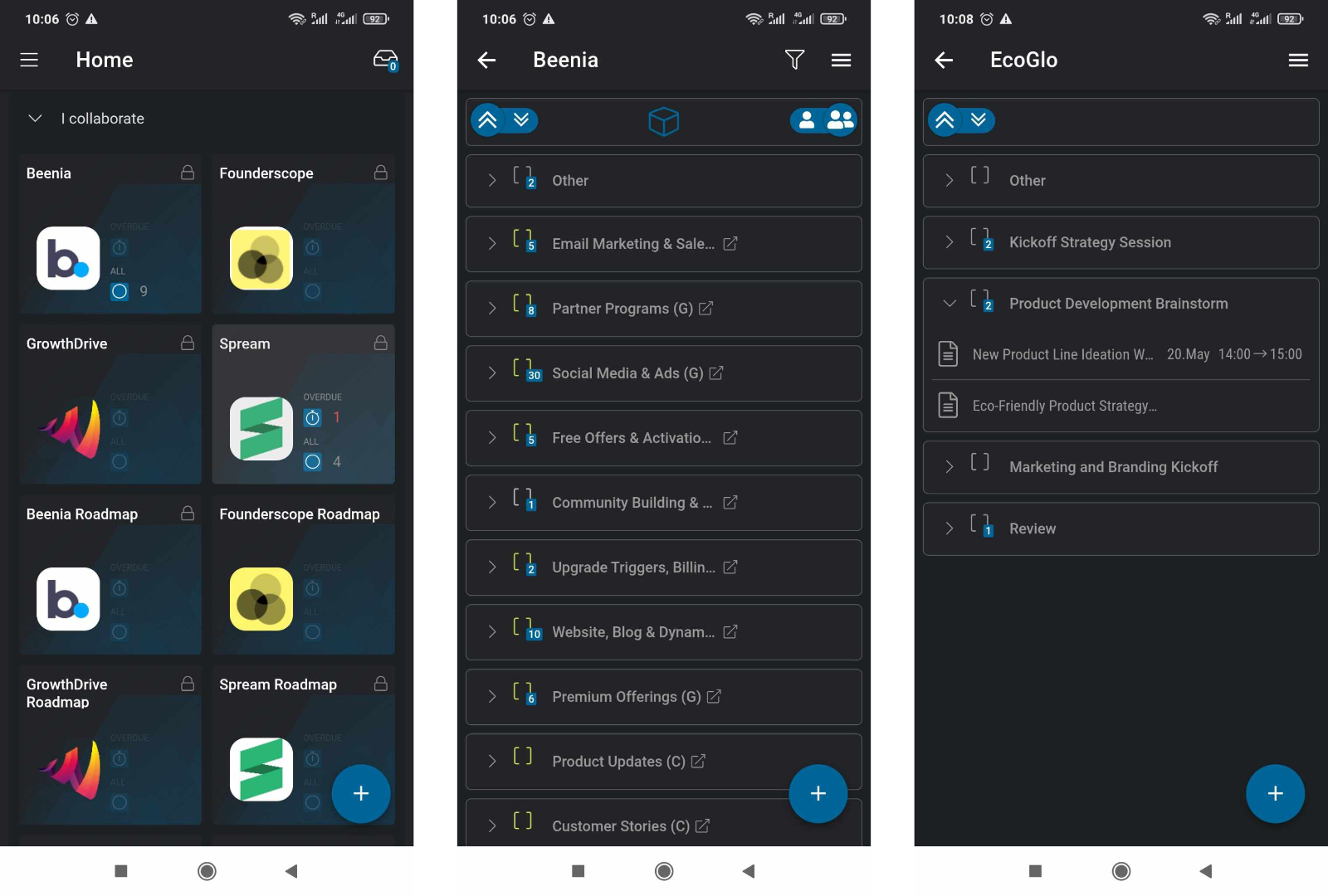
After downloading the Beenia mobile app, you can quickly navigate through your workspaces and manage your tasks with ease. Here’s a basic overview to help you get started.
Navigating the App
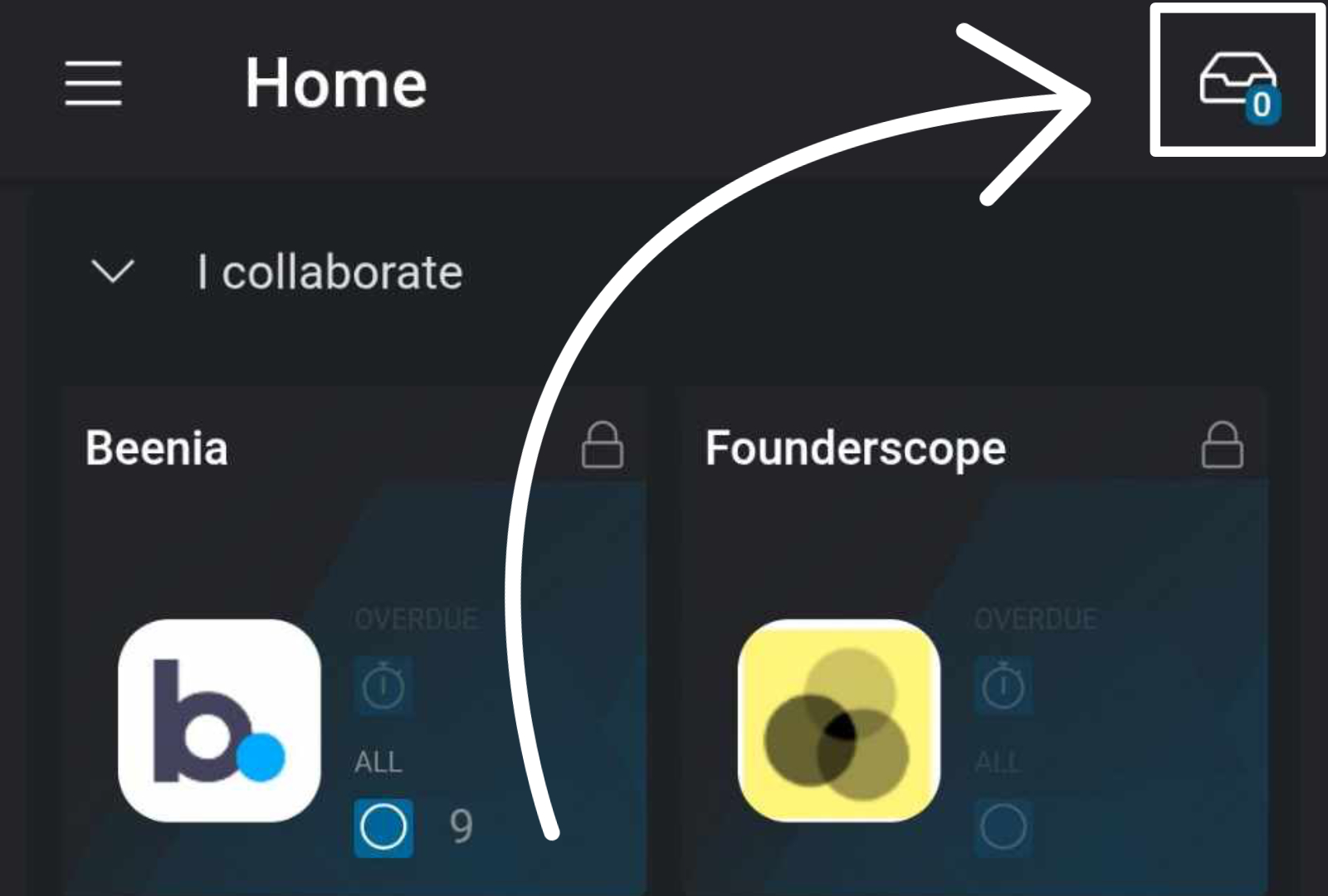
- Inbox: Located in the top right corner, this is where you can check your latest updates and notifications.
- Main Menu: Tap the three-line menu in the top left corner to access:
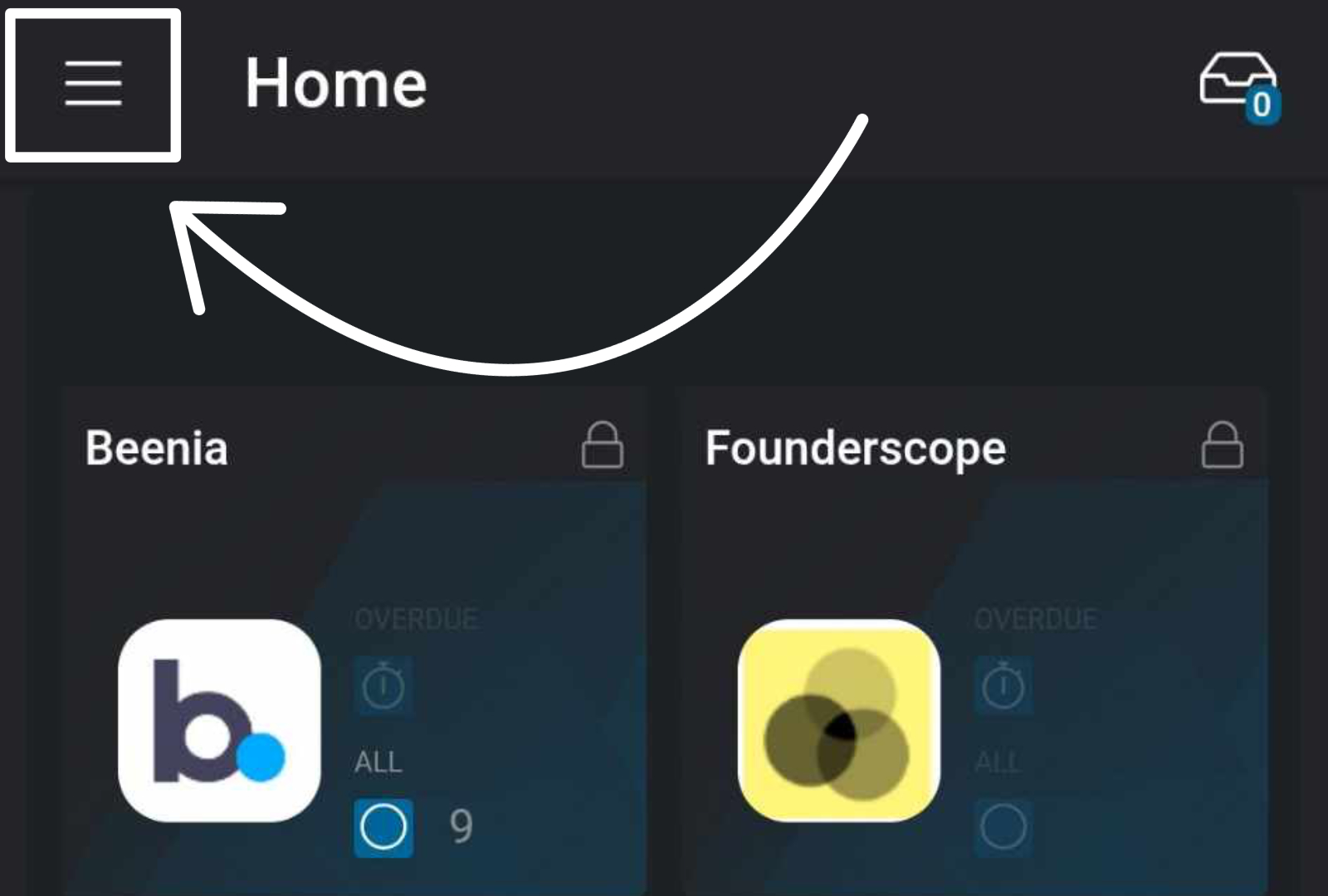
- Home
- Notifications
- Search
- Set Status
- Profile
- Settings
- Administration
- Log Out
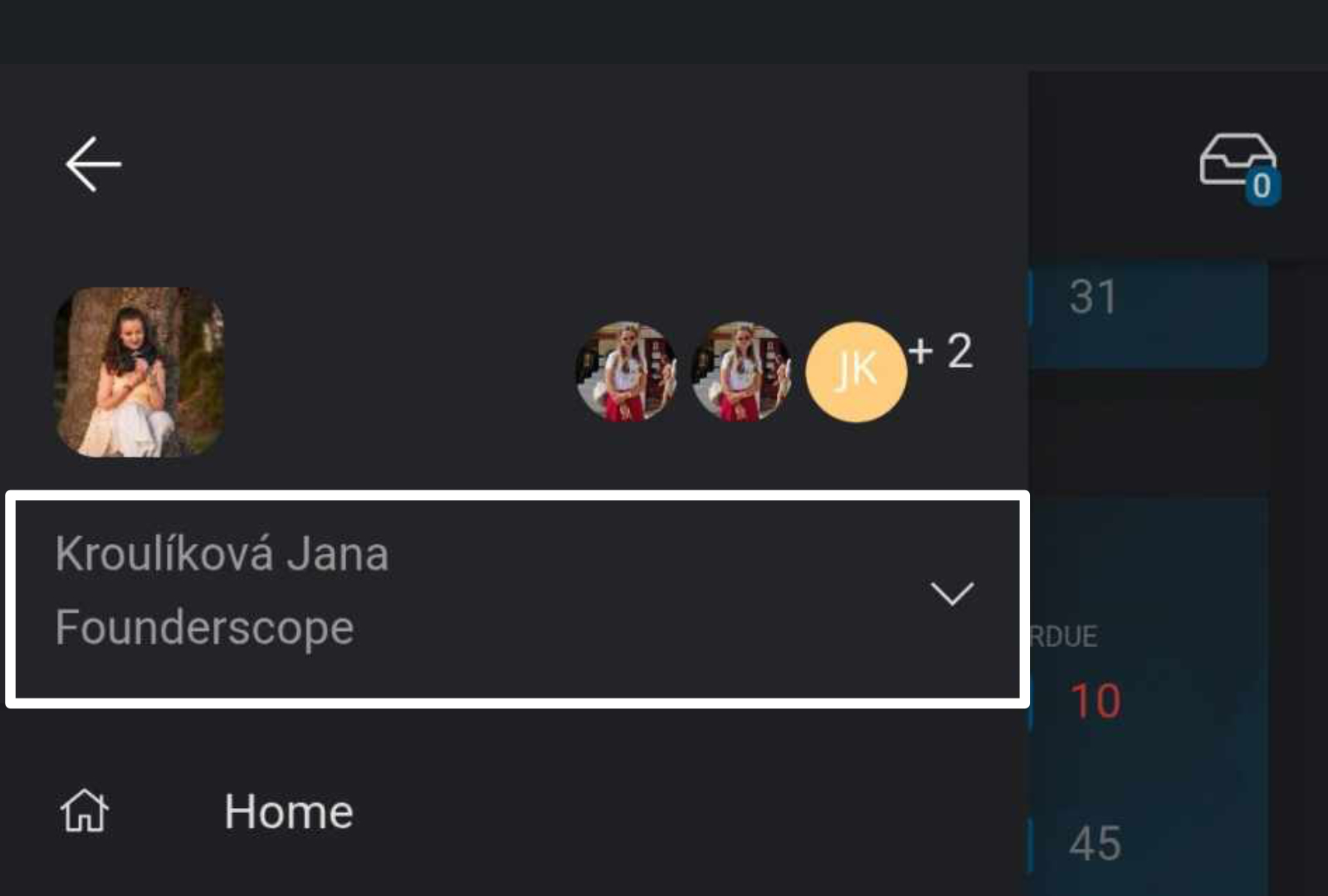
- Switching Teams: Below your profile picture, tap the dropdown arrow to switch between your teams and workspaces.
Exploring Your Workspace
When you enter a workspace (project), you’ll land on the Activities Dashboard where you can track ongoing tasks.
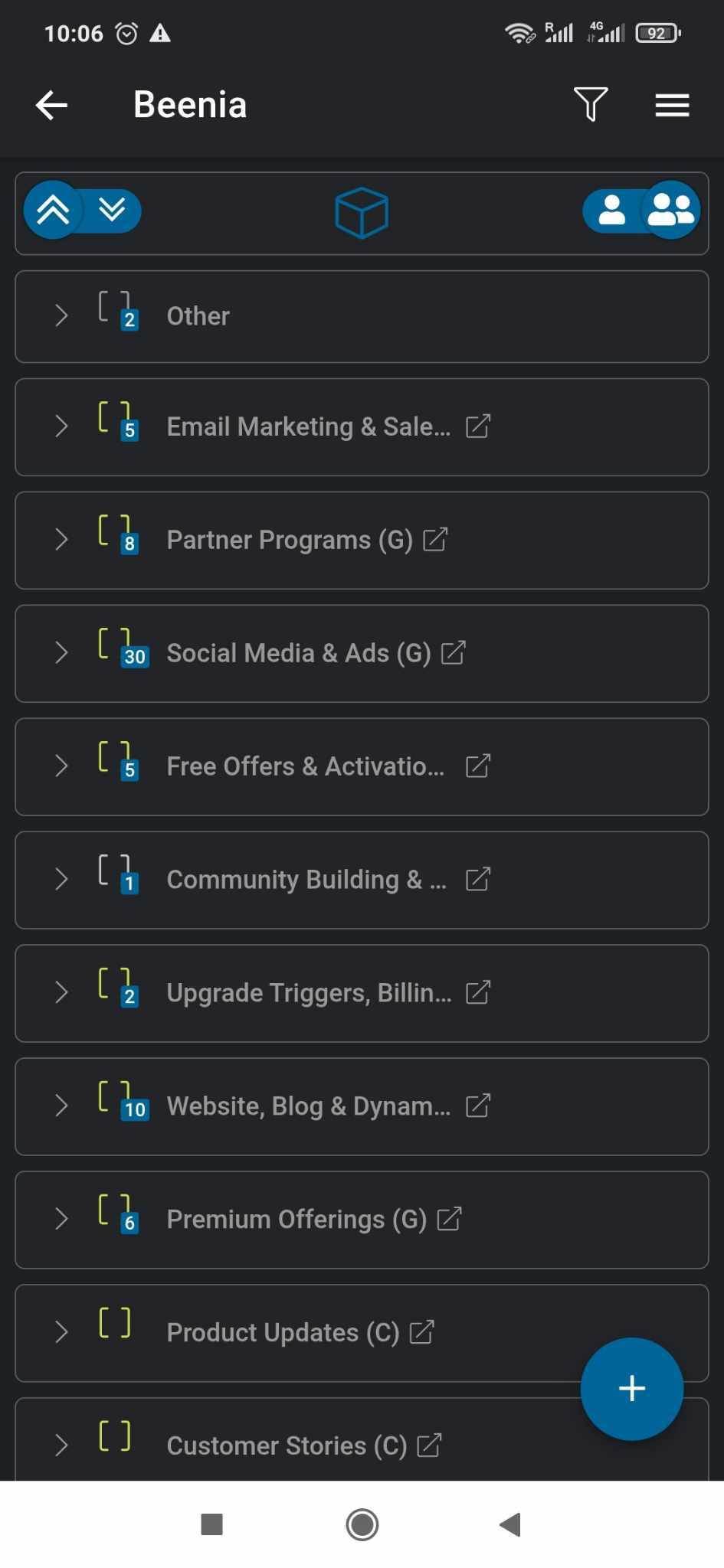
- View Modes: Tap the cube icon in the center of the top bar to switch between List View and Board View. Tap it again to return to the Activities Dashboard.
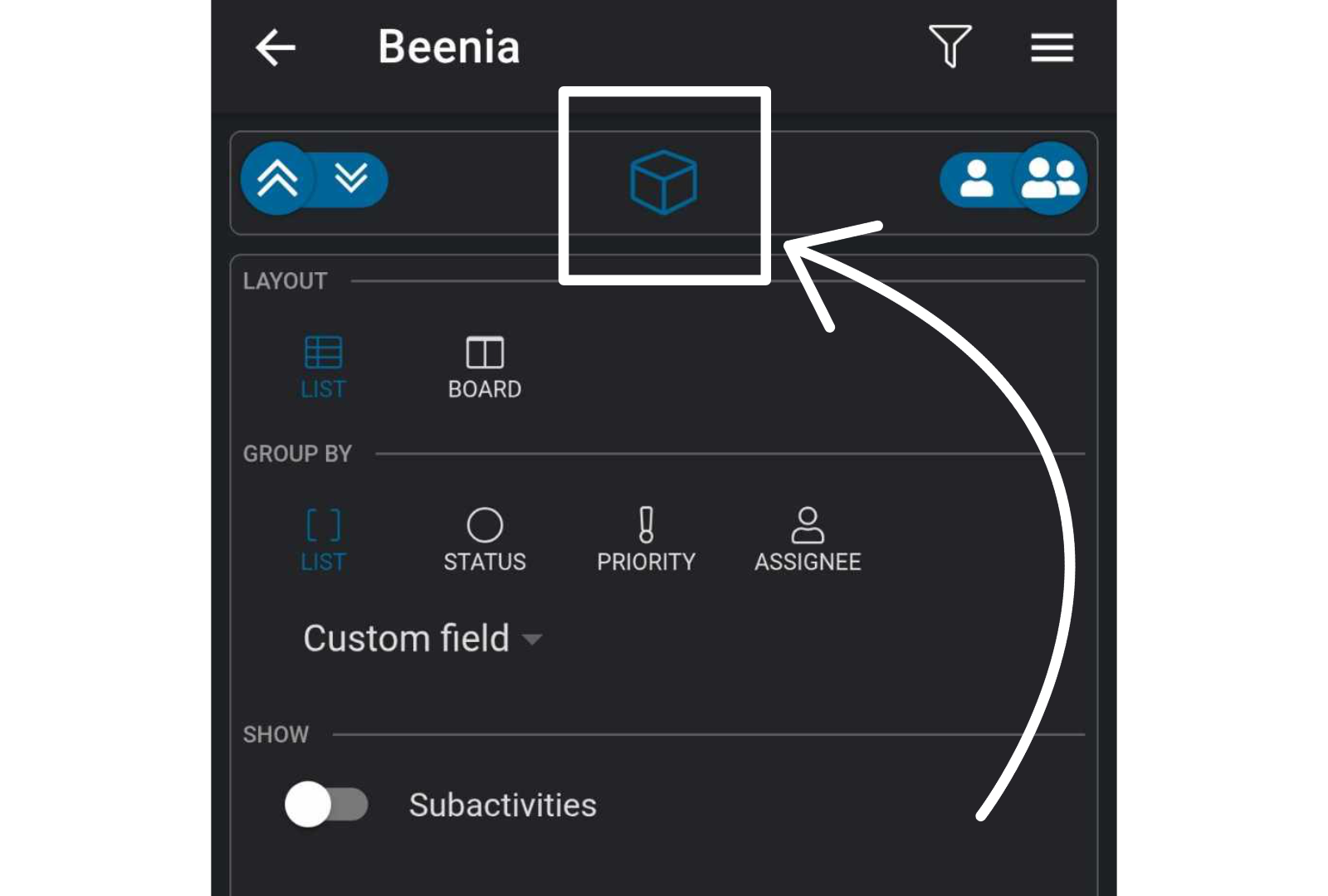
- Filters: Tap the person icon on the right to filter activities by assignee, date, or tags.
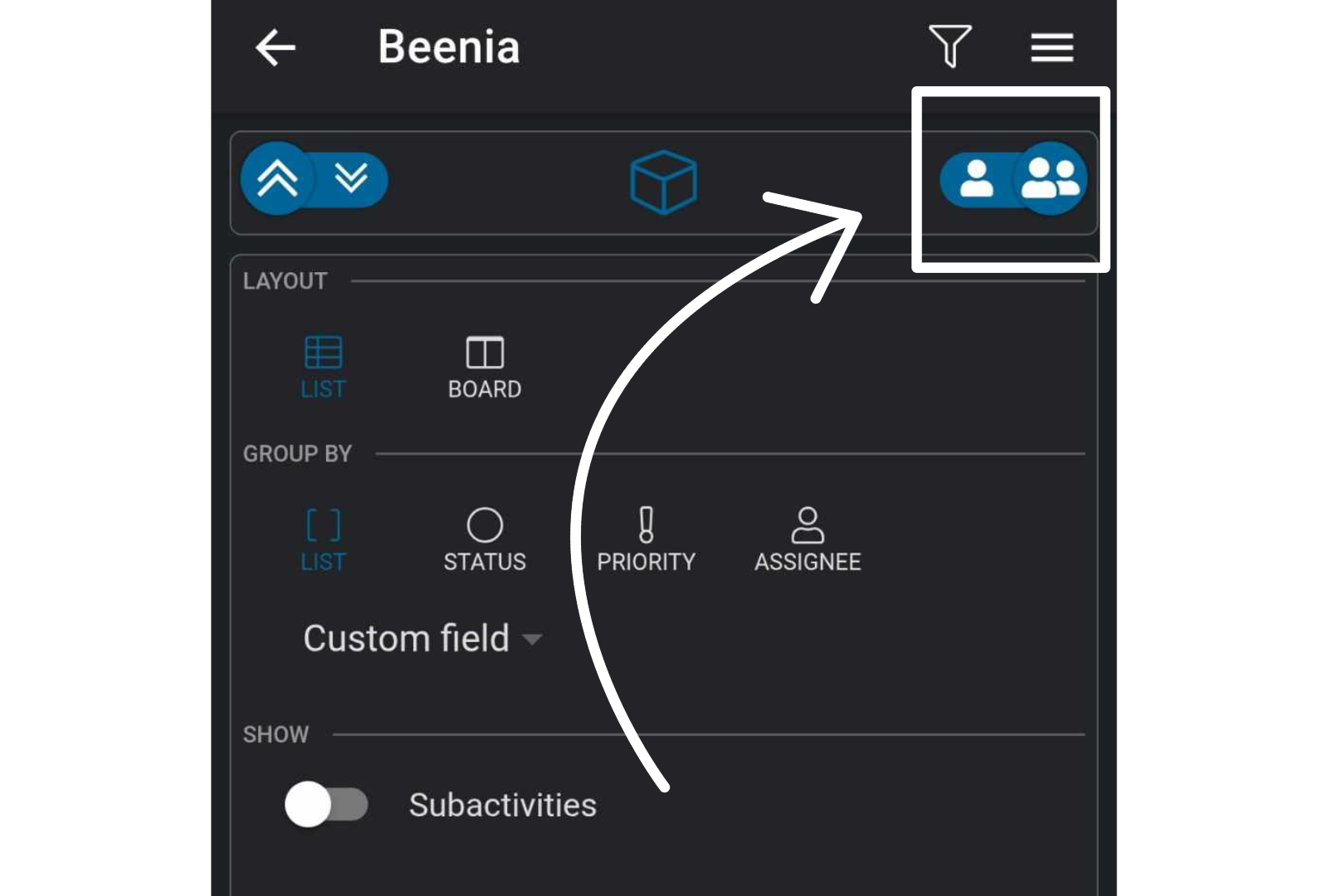
- Creating New Items: The + button in the bottom right corner allows you to quickly add a new activity or list.
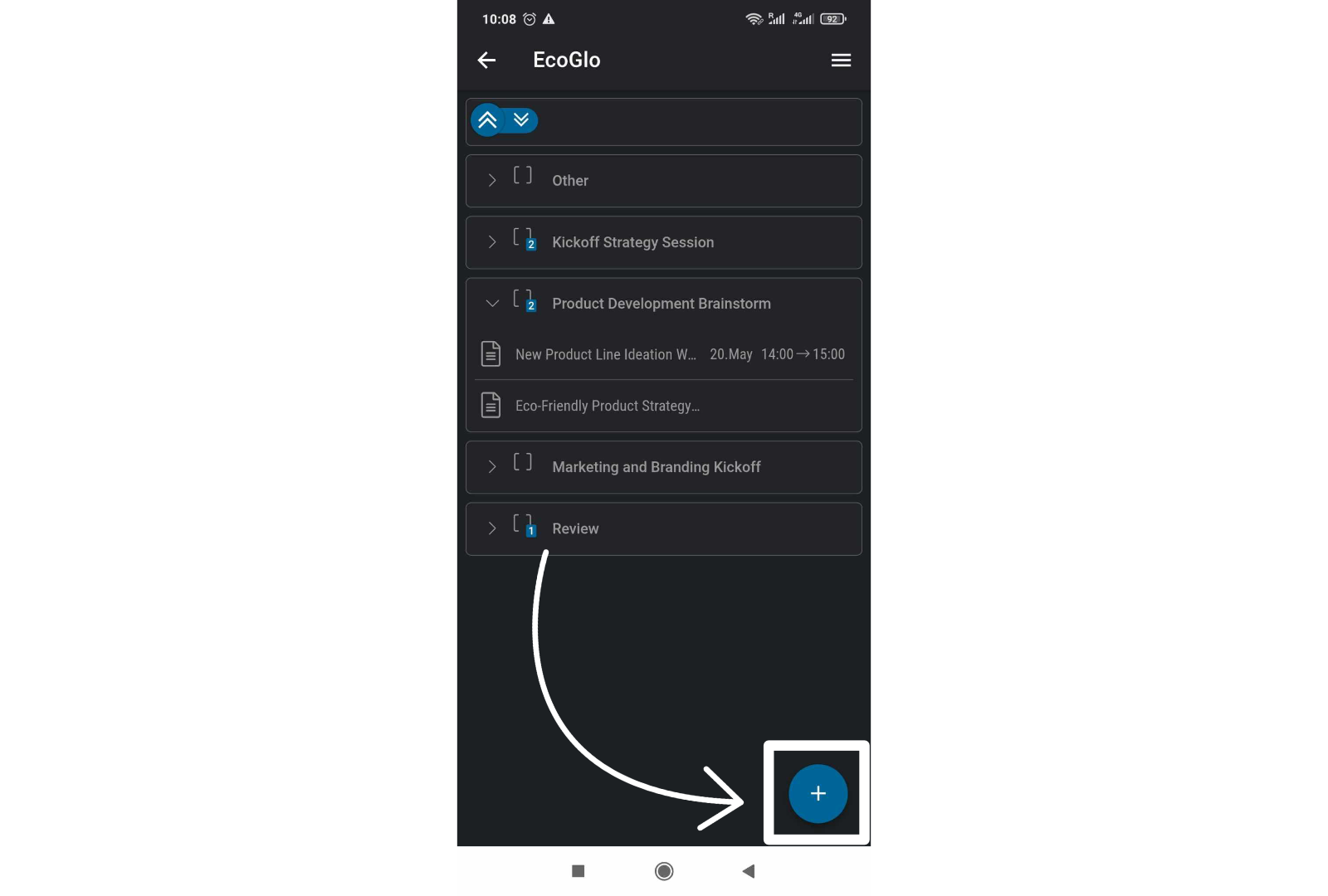
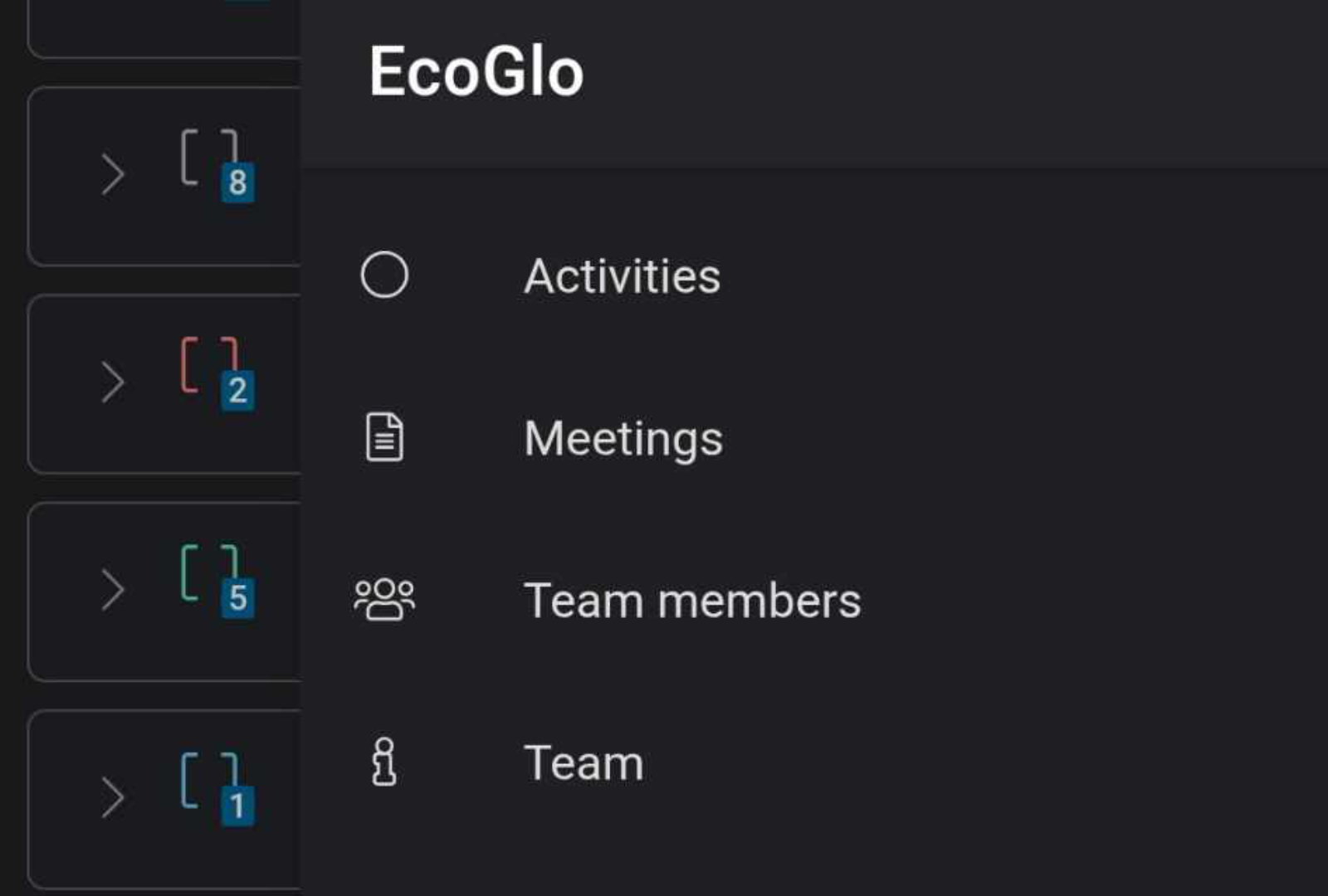
- Navigation Tabs: In the top right corner, you can switch between:
- Meetings
- Activities
- Team Members
- Team Information
This overview gives you the essential tools to start using Beenia on mobile. While the mobile app is still evolving, it serves as a great companion for checking updates, tracking tasks, and staying organized on the go!