
Custom fields in Beenia allow you to tailor your activity management to fit the unique needs of your team or project. With custom fields, you can capture specific details about your tasks and activities, ensuring that your workspace aligns perfectly with your workflow.
1. What Are Custom Fields?
Custom fields are additional data points you can create and add to activities. They go beyond default fields like task names, deadlines, or assignees, giving you the flexibility to track and categorize information that matters most to your team. Examples of custom fields include "Budget," "Priority Level," "Client Name," or "Approval Status."
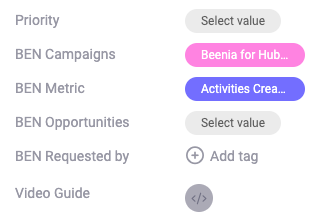
2. Creating Custom Fields
In Beenia, you can create custom fields either for the entire account or for a specific workspace. Here's how each option works:
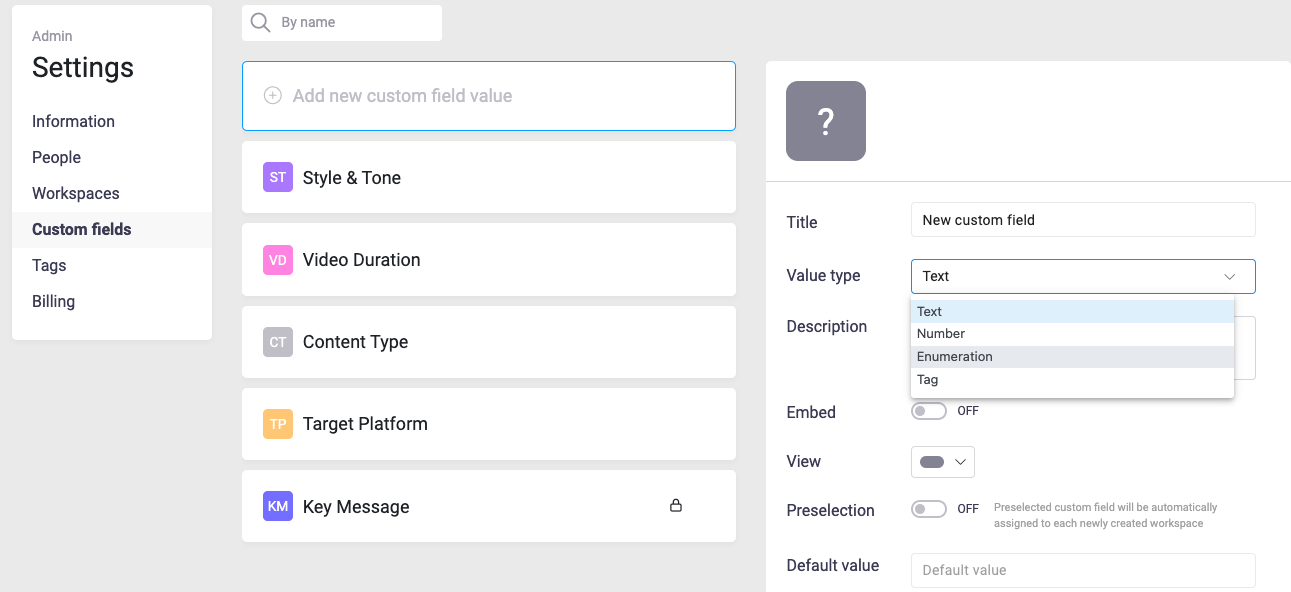
Option 1: Custom Fields for the Entire Account
- Go to Account Administration and navigate to the Custom Fields tab.
- Click Add Custom Field Value and select the field type (e.g., text, number, enumeration, or tag).
- Name the field, configure settings such as default values or multiple-choice options, and save it.
- These fields will be available across all workspaces within the account, ensuring consistency.
Option 2: Custom Fields for a Specific Workspace
- Navigate to Workspace Settings and open the Activities Handling section.
- Click Add Custom Field Value to create a new field exclusively for this workspace.
- Alternatively, select the Select from Directory tab to choose from predefined account-level custom fields.
- Configure the selected or newly created field and save it. These fields will only be visible within the specific workspace.
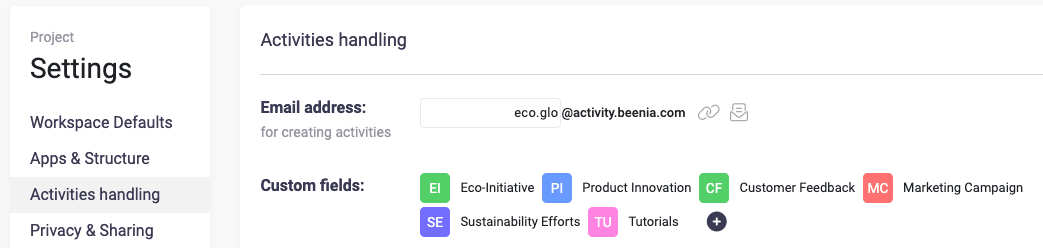
By using account-level custom fields, you maintain consistency across all workspaces, while workspace-specific fields provide tailored solutions for unique projects.
3. Adding Custom Fields to Activities
Once a custom field is created, it can be applied to activities:
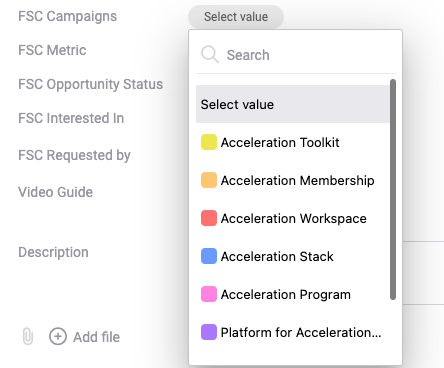
- Open the activity detail view and locate the custom fields section.
- Fill in the relevant information or select the appropriate option for that field.
- Custom fields can also be utilized when copying activities, ensuring consistency across recurring tasks. By using the "Copy" feature in Beenia, you can duplicate activities with all their associated custom fields, saving time and maintaining uniformity in your processes. This is especially helpful for repetitive workflows or similar projects where specific details need to be carried over.
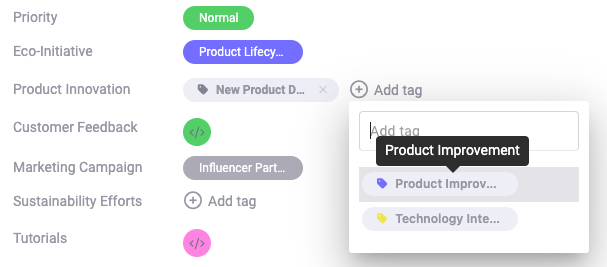
4. Benefits of Using Custom Fields
- Better Organization: Keep track of project-specific details like costs, deadlines, or client preferences.
- Improved Reporting: Use custom fields to filter and sort activities, making it easier to generate reports or analyze progress.
- Enhanced Collaboration: Ensure that all team members have access to critical activity data, reducing misunderstandings.
5. Editing and Managing Custom Fields
Admins can manage custom fields to ensure they remain relevant:
- Rename fields or change field types as your project evolves.
- Delete outdated fields to declutter your workspace.
- Adjust permissions to control who can view or edit specific fields.
6. Tips for Using Custom Fields Effectively
- Standardize Field Names: Use clear and consistent naming conventions for easier understanding.
- Limit Unnecessary Fields: Avoid overwhelming your team by only creating fields that provide value.
- Combine with Filters: Pair custom fields with saved views to quickly access specific sets of activities.
Custom fields in Beenia are a simple yet powerful way to make your workspaces more dynamic and adaptable. Take advantage of this feature to capture, organize, and leverage the information that drives your projects forward.