
Activity statuses in Beenia are essential for tracking progress and keeping your workflow organized. They provide a clear visual representation of where each task stands, helping your team prioritize effectively and stay on track. Here’s how to set, customize, and make the most of activity statuses in Beenia.
1. Default Statuses
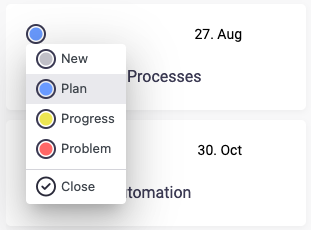
When you create activities in Beenia, they are automatically assigned a default status, such as New, Plan, Progress or Closed. These predefined statuses help you start organizing tasks right away without additional setup.
2. Customizing Statuses
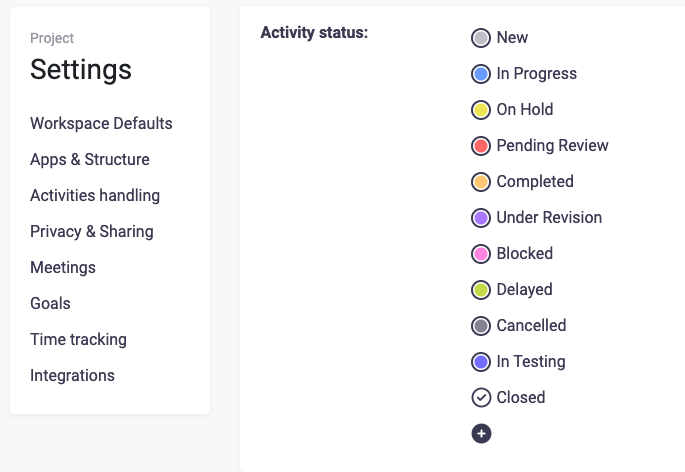
Each workspace in Beenia can have its own set of activity statuses. This customization ensures that the statuses match the unique workflow of your team or project. For example, you can add statuses like "Awaiting Feedback," "Under Review," or "Blocked" to fit specific processes.
To customize statuses, navigate to your workspace settings, select "Activities Handling" and edit statuses. Assign unique names and colors to make them easily distinguishable at a glance.
3. Updating Statuses
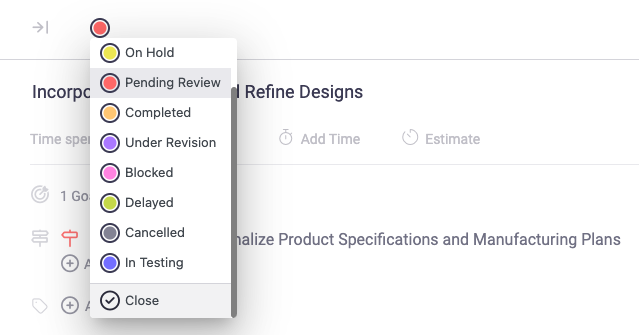
As tasks progress, you can update their statuses directly from the activity detail view or from the activity list. Simply click on the status dropdown menu, select the appropriate status, and Beenia will update it in real time. This feature ensures your entire team stays aligned and informed about the current state of activities.
4. Automating Status Changes
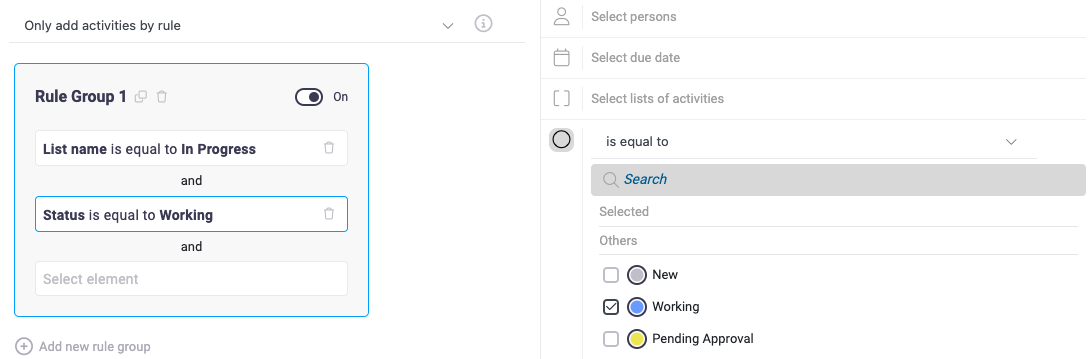
Streamline your workflow by setting rules that automate status changes. For example, activities tied to goals can automatically move to "In Progress" when team members begin working on them or switch to "Completed" when all subtasks are marked as done.
5. Monitoring Progress
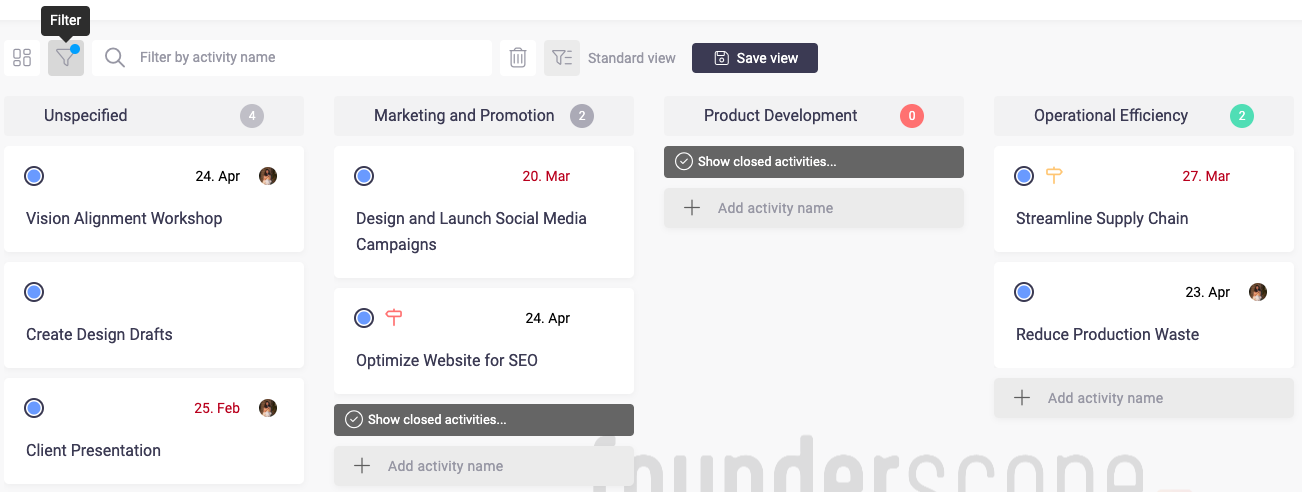
Statuses make it easy to monitor the overall progress of your workspace. Use filters to view activities by their current status, such as "In Progress" or "Completed." This functionality is particularly helpful during meetings or reviews, as it provides a clear overview of the team's accomplishments and bottlenecks.
6. Tips for Effective Status Management
- Keep It Simple: Use clear and concise names for statuses to avoid confusion.
- Use Colors Strategically: Assign distinct colors to make it easy to identify statuses at a glance.
- Involve Your Team: When customizing statuses, get input from your team to ensure they meet everyone’s needs.
By effectively setting and managing activity statuses, you’ll create a structured workflow that promotes transparency, accountability, and efficiency within your team. Take advantage of Beenia’s flexible status features to keep your work moving smoothly.